
Best File Converter Tools to use Locally - Compared and Ranked
Nobody wants to be bombarded with a dozen ads when they just need a docx file of a PDF upload.
Too many inputs to encode and decode a file simply isn't it. File conversions shouldn't take more than three clicks at a time, ideally under 5 seconds.
This is where Desktop File Converters come in.
So in today's article, we rank the best converters that let you use their app locally.
Top 5 Local File Converters - Summary
Local Apps don't come with ads, so that's out of the comparison chart first thing. We then have ease of use, supported formats, pricing as key factors to compare the Apps with each other.
PS: We only compare File Converter Apps that support multiple formats and work fully offline, we also ignore core tools like FFMPEG, LibreOffice, and the kind since they offer specific formats and cover a broader range of use-cases along with File Conversion.
| App Name | Pricing | Supported OS | Ease of Use | Supported Formats | Additional Requirements |
|---|---|---|---|---|---|
| Convert Files | $12 (one-time) | Windows, Linux, Mac | Very easy (30s setup, <5s conversion) | 3000+ (image, video, audio, documents) | Requires Pandoc, FFmpeg, ImageMagick; LibreOffice optional |
| How to Convert | $20 (one-time) | Windows, Linux, Mac | Very easy (30s setup, one-click instant) | 3000+ (image, video, audio, documents) | Same as Convert Files (Pandoc, FFmpeg, ImageMagick; LibreOffice optional) |
| Offline File Converter | Free | All OS (browser-based) | Very easy (instant, no setup) | Limited (image, audio, documents) | None |
| File Converter Pro | $3 (one-time) | Windows only | Easy (local app) | 300–900 (image, audio, documents) | None |
| File Converter io | Free (open-source) | Windows only | Easy (context menu integration) | 100–500 (audio, video, image, documents) | Requires Microsoft Office (for Office files) |
Top Local File Converters - A Short, Concise Breakdown
We don't mean an in-depth comparison, as these are very basic tools. Just the pricing and what they offer for it, the ease of use for the average person, and additional efforts required post-purchase, if any.
Free vs Paid Apps - What do both offer?
Out of the only two free apps, one is browser-based meaning the conversions happen entirely on your device. The other free app is an open-source tool that needs to be set up on your device, like any Desktop app.
The only downside with these free tools is that they support a limited number of formats for each type, so if your intention with a Local App is to convert everyday file formats like docx, pdf, mp3, etc., go ahead with these tools; they're the ideal fit.
The Paid apps come in when you require more formats supported for various use cases. Both How to Convert and Convert Files support up to 3000+ formats.
Free apps offer limited supported formats, the local app Offlinefileconverter being open-source while the browser based Fileconverter come with ads yet safe and secure nonetheless. Paid options ConvertFiles and HowtoConvert offer large scale of supported formats, ConvertFiles priced relatively cheaper to HowtoConvert.
Ease of Use
"It must be quick to set up, no ads, convert in a blink, and take minimal space."
This is a baseline thought process for the average person if asked for a good file converter that works offline.
Let's see how the Apps compare for the same.
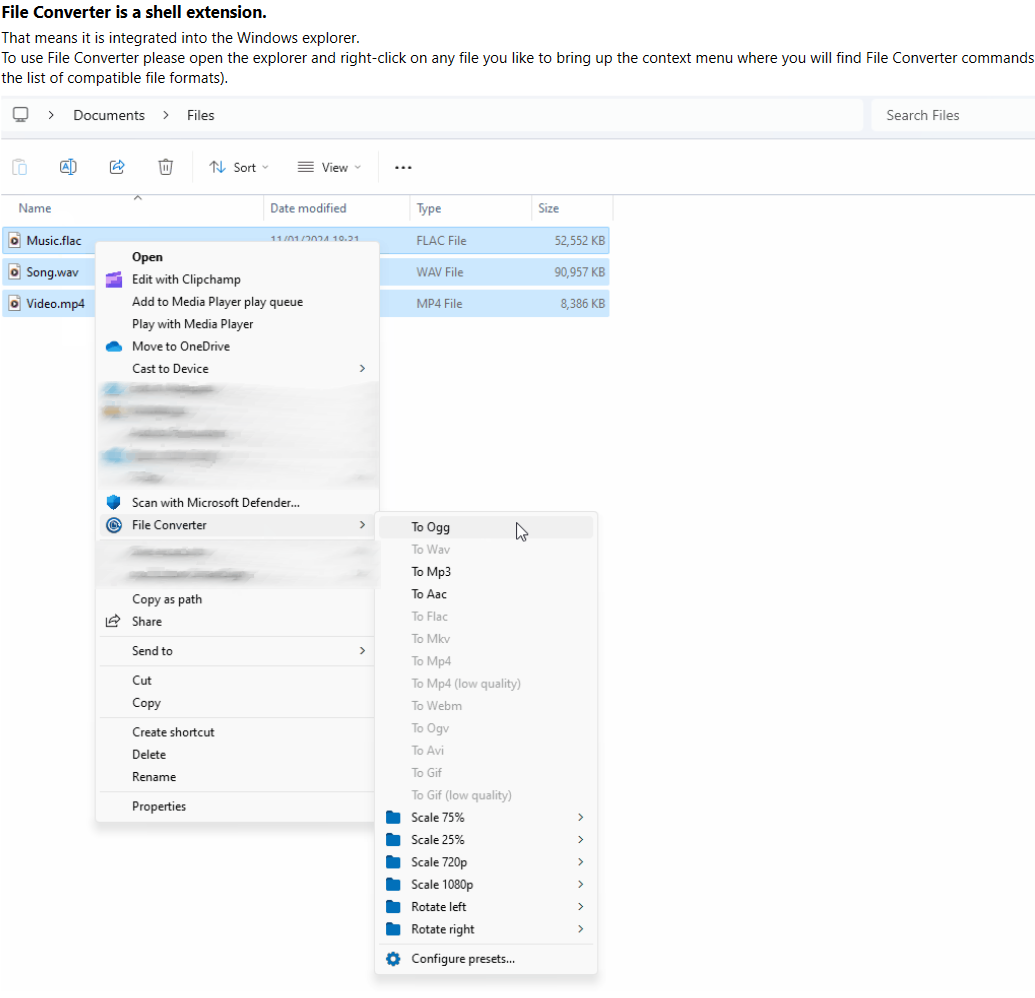
I need to give it to File-Converter for user experience. All you have to do post-install is right-click the file required to convert, click File Converter - output format - TADAAAAA!
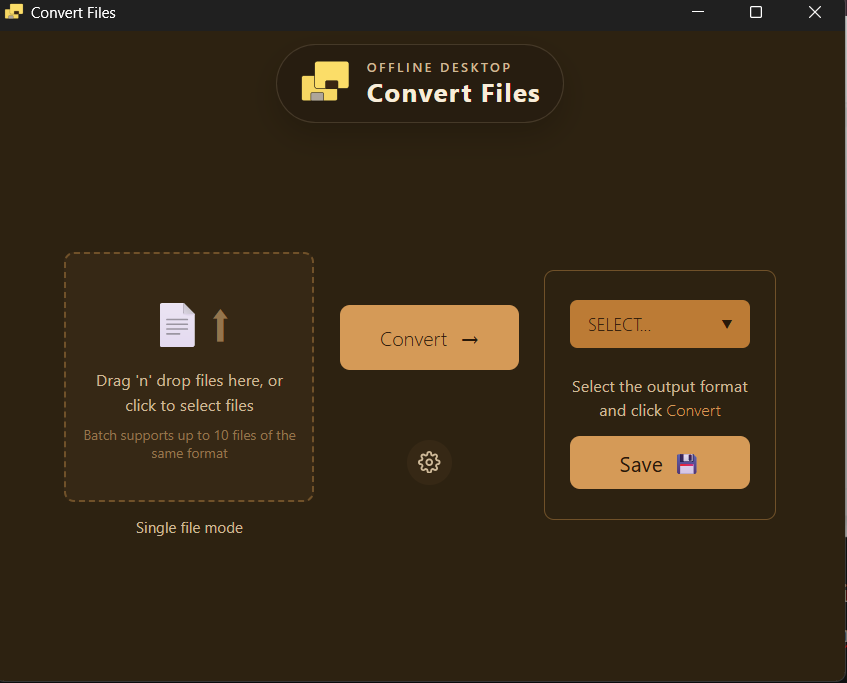
Both Convert Files and How to Convert require you to check the installation of required tools - FFMPEG, PANDOC, and Imagemagick - before proceeding to launch.
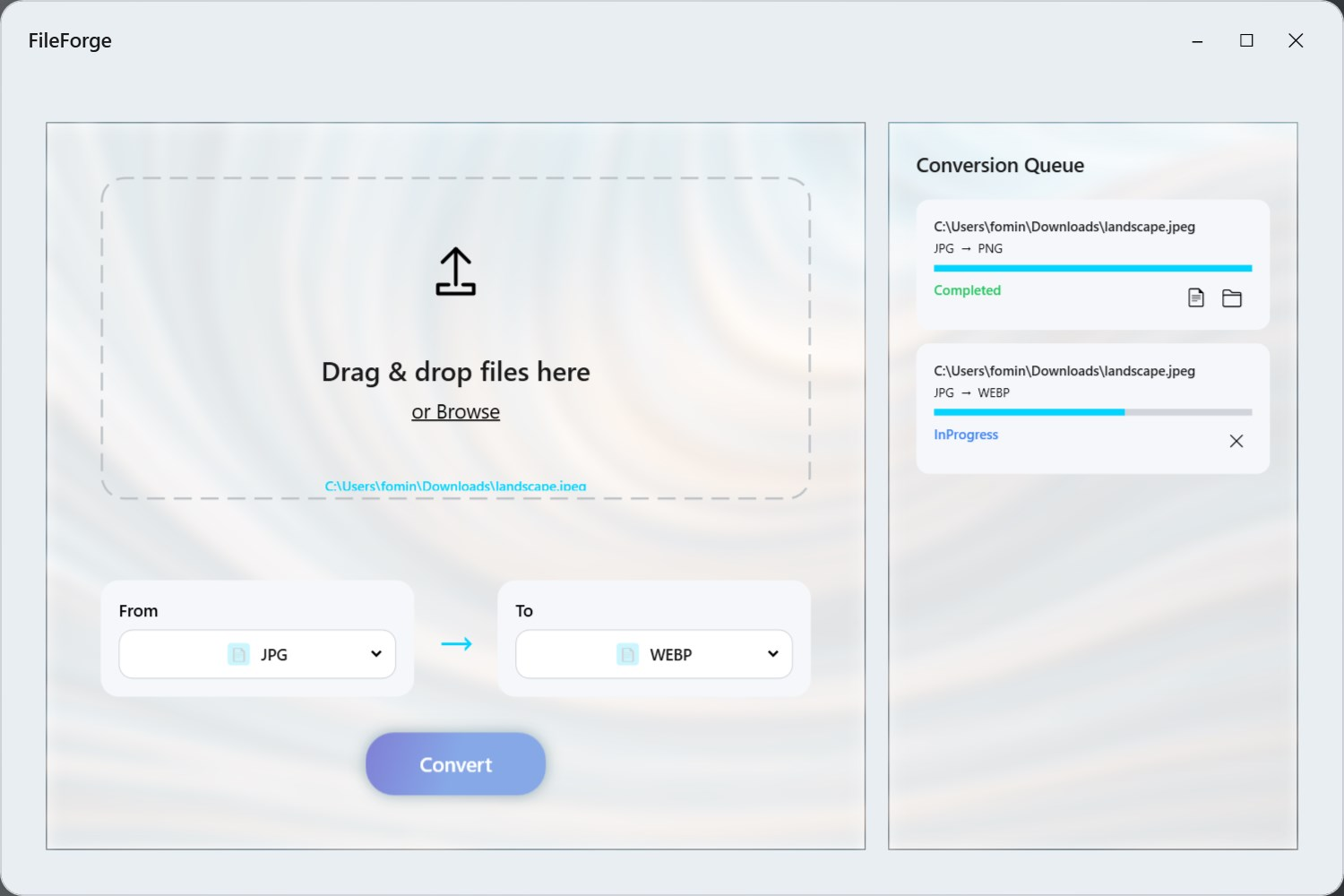
The offline File Converter is just like every other website converter with Ads, except it is safe. So no comments on user experience, as you might already have experience with it.
The $3 File Converter Pro available through the Microsoft Store was just too basic yet buggy to navigate through, so we're dropping it off with a 2/10 for user experience.
Winner for Ease of Use - Local Converter.
Additional Requirements
- Convert Files and How to Convert require you to check and install Pandoc, FFMPEG, and Imagemagick before launch. LibreOffice and LaTeX are optional if office-based conversions are required.
- Local Converter requires nothing to install, nor does File Converter Pro and Offline File Converter.
- Out of all five, only Convert Files, How to Convert, and Offline Converter support Windows, Linux, and Mac. The other two are Windows only and require Microsoft Office installed and activated to work.
Takeaway
As you can see, choosing the right tools from this list depends on your requirements and level of technical expertise.
If you're a casual user with a little bit of programming background, go with CLI commands using core tools like FFmpeg, Pandoc, and the like. On the flip side, if you're a heavy user handling sensitive files of a common format, open-source tools are your best bet.
But if sensitive files, various formats, frequent usage is the kind of person you are, Desktop Apps like Convert Files would be your best bet for 12 bucks!
Happy conversions!
