
How to convert files with Pandoc?

pandoc input.ext -o output.extThis is the easiest and most popular way to convert files with Pandoc.
But what exactly is Pandoc and how does it convert files with a single line command?
Let's find out.
What is Pandoc?
Pandoc is a free, open-source document conversion tool used to convert files between markup formats. It supports formats like Markdown, HTML, DOCX, PDF, LaTeX, EPUB, and more.
What Pandoc does:
- Convert documents (Markdown → PDF, DOCX → HTML, etc.)
- Preserve structure like headings, lists, citations
- Enable publishing workflows (books, reports, blogs)
Core idea:
Pandoc acts as a universal document translator.
How does Pandoc convert files?
Pandoc converts files using a structured intermediate representation.
Think of it like translating a document:
- Read the source
Pandoc reads the input file and understands its structure (headings, paragraphs, lists). - Convert to an abstract format
It transforms the content into an internal format (AST – abstract syntax tree). - Apply transformations
You can modify styles, templates, citations, formatting rules. - Write to output
It generates the final file in the target format (PDF, DOCX, etc.).
Key idea:
Pandoc preserves meaning and structure rather than just raw text.
How to use Pandoc to convert files?
Basic CLI usage
pandoc input.ext -o output.ext
What it does:
- Reads input file
- Converts to chosen format
Common useful options
pandoc input.md -o output.pdf --pdf-engine=xelatex
pandoc input.md -o output.html --standalone
pandoc input.md -o output.docx --reference-doc=template.docx
--pdf-engine→ choose PDF engine--standalone→ full document output--reference-doc→ custom styling
GUI frontends -Tools built on Pandoc
- Convert Files
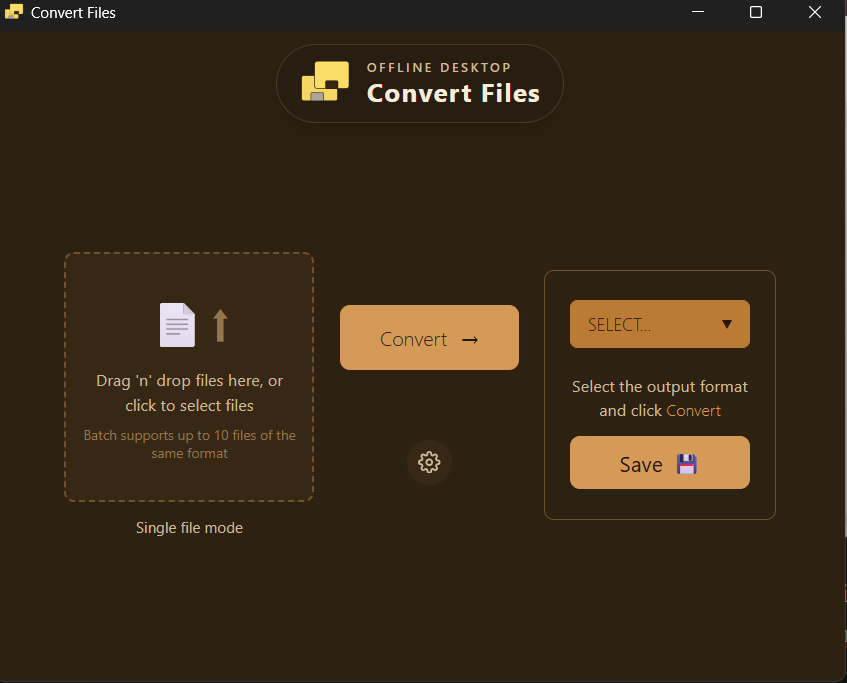
Convert Files is a paid desktop app built on top of Pandoc. Unlike CLI commands or open-source tools, where updates, changes, and command variations can be overwhelming for everyday users, Convert Files offers an all-in-one solution to convert your files on the go.
Our app features a one-click process to upload, convert, and save files onto your computer as and when you need them. No ads, no pop-ups, no command look-ups.
The process is pretty straightforward:
- Download the app
- Sign in using your paid email address
- Install necessary tools (auto-run checks in the background)
- Click Launch
- Use forever
No need to type commands or manage dependencies manually.
Pandoc in programs / apps
Pandoc is widely used in:
Static site generators
- Tools like Hugo, Jekyll, or MkDocs often rely on Markdown.
- Pandoc is used to:
- Convert Markdown → HTML pages
- Normalize formatting across posts/pages
- Add templates (headers, navigation, metadata)
Typical flow:
markdown files → pandoc → HTML → static site generator → website
Documentation tools
- Used in tools like Sphinx or Docusaurus.
- Pandoc helps:
- Convert docs into multiple outputs (HTML, PDF, EPUB)
- Maintain a single source (e.g., Markdown) for all formats
- Often integrated into CI/CD pipelines for auto-generating docs on every update.
Example workflow:
docs.md → pandoc → docs.html / docs.pdf
Publishing pipelines
- Used in academic, book, and report publishing.
- Example:
- Write in Markdown or LaTeX
- Use Pandoc to generate:
- PDF (for print)
- EPUB (for eBooks)
- DOCX (for editors)
- Supports:
- Citations (BibTeX)
- Cross-references
- Custom templates (journals, publishers)
Typical pipeline:
manuscript.md + references.bib → pandoc → PDF / EPUB / DOCX
In applications (developer usage)
- Pandoc is invoked via:
- CLI calls from backend code
- Wrappers/libraries (Python, Node.js, etc.)
Common use cases:
- Content platforms
- User uploads Markdown → auto-convert to HTML for display
- Report generators
- Data → Markdown template → Pandoc → PDF report
- SaaS tools
- Export features (e.g., “Download as PDF/DOCX”)
Example (backend flow):
user input → generate markdown → run pandoc → return PDF
Key advantage:
- One source → multiple output formats
- Fully automatable → no manual editing needed
Takeaway
Pandoc is ideal for structured document conversion. It’s powerful for writers, developers, and publishers needing consistent, high-quality output across formats.