
How to Convert Files with FFMPEG?
ffmpeg -i input.ext output.ext
This is the easiest and most popular way to convert files with FFmpeg.
But what exactly is FFmpeg and how does it convert files with a single line command?
Let's find out.
What is FFmpeg?
It is a software suite built by the FFMPEG project as a free, open-source multimedia framework used to process audio, video, and streams.
What FFmpeg does:
- Convert formats from one to another (eg, WAV -> MP3, MP4 -> MOV)
- Record stream and edit media.
- Extract audio from video, compress or resize videos, or apply filters.
Core components:
ffmpeg→ command-line tool for processing mediaffplay→ simple media playerffprobe→ analyzes media files
Works on Windows, macOS, and Linux, mainly via the command line.
How does FFmpeg convert files?
FFmpeg converts files by decoding → processing → encoding → muxing.
What does that even mean?
Think of it like repackaging a movie:
- Open the package
- FFmpeg opens your file and looks inside
- Finds video, audio, subtitles
2. Unpack it
It turns everything into a simple, raw form so it can work with it
Wait, now what is this raw form like?
“Raw form” = fully uncompressed data that a computer can easily work with.
- Video: a sequence of plain images (frames), like millions of individual pictures
- Audio: pure sound waves (no compression), like WAV
- Make changes (if needed)
- You can resize, cut, reduce quality, or size, etc.
- FFmpeg makes these changes by applying built-in filters and settings to the raw data.
Think of it like editing a photo file before saving it again:
Resize:
- It redraws each frame to a new size
- Like shrinking or stretching an image
Cut/trim:
- It keeps only the part you want and discards the rest
- Like cutting a clip in a video editor
Reduce size/quality:
- It compresses more aggressively when rebuilding
- Throws away small details your eyes/ears won’t notice much
The key idea is that FFmpeg rebuilds a new file while applying these changes instead of editing the original file directly.
4. Pack it into a new file
- Combines video + audio back into a new file (like MP4, AVI)
How to use FFmpeg to convert files?
Apart from the popular command line script, there are a myriad of ways to convert files with FFmpeg; we discuss all of them in detail below.
Basic CLI usage
ffmpeg -i input.ext output.ext- Opens the file → rebuilds it in a new format
- You can add options to control quality, size, and codecs
Common useful options
ffmpeg -i input.mp4 -c:v libx264 -c:a aac output.mp4-c:v→ video format (codec)-c:a→ audio format
ffmpeg -i input.mp4 -crf 23 output.mp4-crf→ quality (lower = better, larger file)
ffmpeg -i input.mp4 -b:v 1M output.mp4-b:v→ target file size via bitrate
ffmpeg -i input.mp4 -r 30 output.mp4-r→ frame rate
ffmpeg -i input.mp4 -vf scale=1280:720 output.mp4-vf→ apply changes (resize, crop, etc.)
GUI Frontends (Tools built on FFMPEG)
- Convert Files
Convert Files is a paid desktop app built on top of FFmpeg. Unlike CLI commands or open-source tools, where updates, changes, and command variations can be overwhelming for everyday users, Convert Files offers an all-in-one solution to convert your files on the go.
Our app features a one-click process to upload, convert, and save files onto your computer as and when you need them. No ads, no pop-ups, no command look-ups.
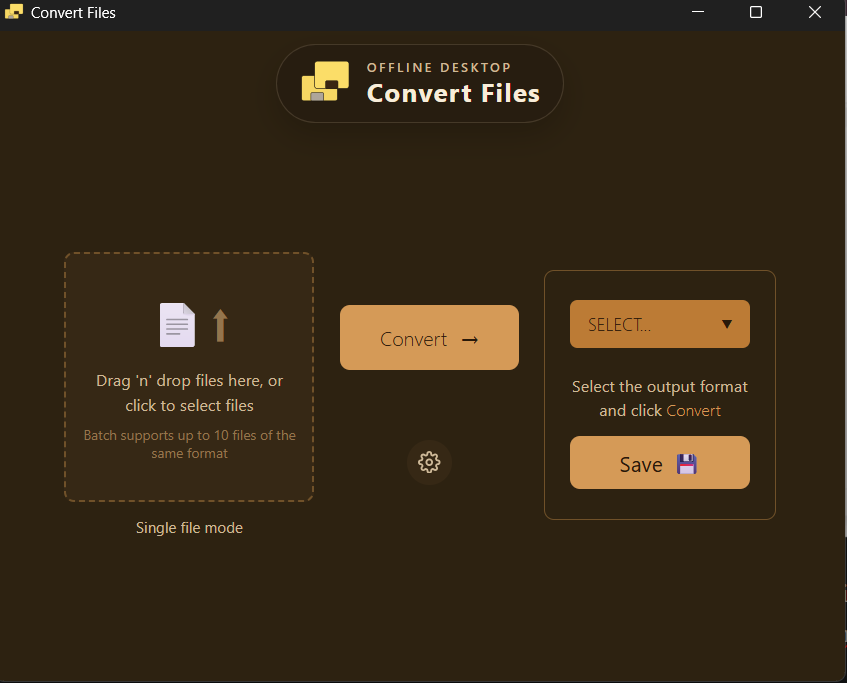
The process is pretty straightforward:
- Download the app
- Sign in using your paid email address.
- Install necessary tools (auto-run checks in the background)
- Click Launch
- Use forever
No need to type in a different command for different formats. Needn't check updates for new formats in different tools. Install once and use forever.
Ideally, the best option for professionals dealing with sensitive files on a daily basis.
How to convert files with FFmpeg using Handbrake?
- Open HandBrake
- Drag your video in
- Choose preset (e.g., “Fast 720p”)
- Set format: MP4
- Click Start Encode
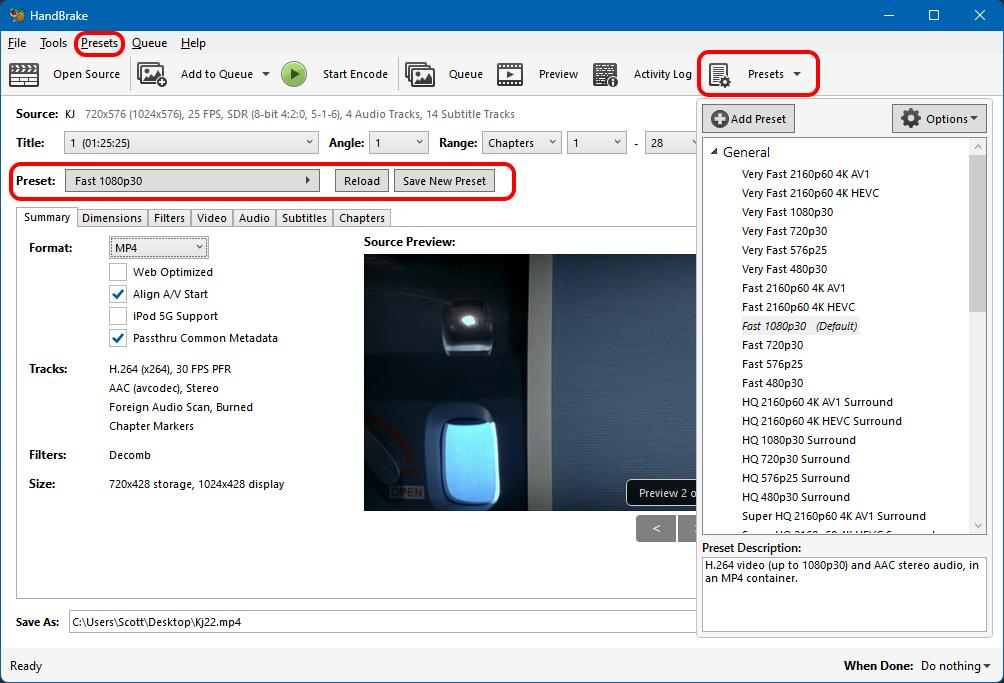
- Focus: simple video conversion & compression
- Uses ready-made presets (YouTube, mobile, fast encode)
- Let you tweak quality, resolution, and subtitles
Good for
- Shrinking large videos
- Converting formats quickly
- Beginners who want “set and go.”
Limitations
- Not a full editor (no timeline, effects)
How to Convert files with FFmpeg using VLC Media Player?
- Open VLC → Media → Convert / Save
- Add file → click Convert
- Choose profile (e.g., MP4)
- Pick output file → Start
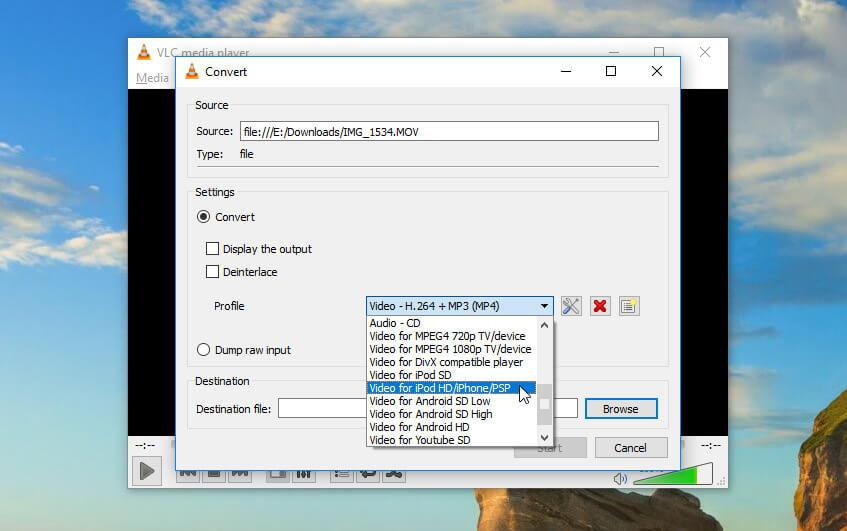
- Focus: play anything + basic conversion
- Has a “Convert / Save” feature built in
Good for
- Quick format changes
- Extracting audio from video
- No extra install if you already use VLC
Limitations
- Fewer options and less control
- Not ideal for fine-tuning quality
How to Convert files with Shortcut using FFmpeg?
- Open Shotcut → drag file into timeline
- Click Export
- Choose preset (e.g., H.264 MP4)
- Click Export File
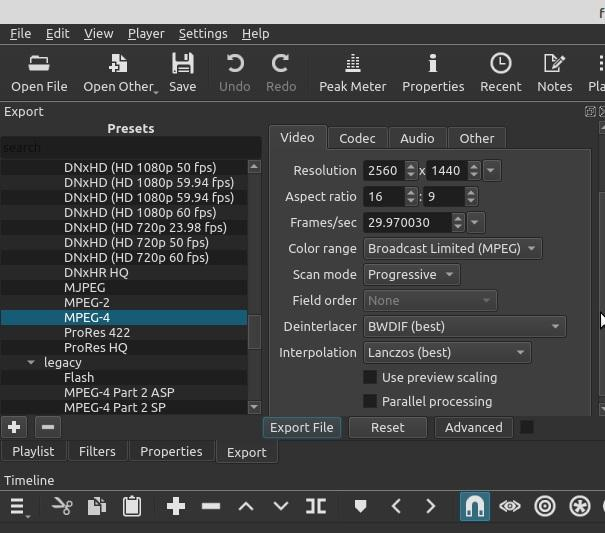
- Focus: full video editing + export
- Timeline editing, filters, transitions
- Export uses FFmpeg under the hood
Good for
- Cutting, combining, and adding effects
- Then exporting to different formats
Limitations
- Slight learning curve
- Slower for simple conversions compared to HandBrake
FFmpeg in programs/apps
If you're a developer, you can use FFmpeg for all its use-cases via a backend tool calling or through libraries inside apps.
This approach is mostly used in video platforms where uploading and auto-conversion to multiple formats, sizes, or qualities are a thing. It can also be used in editing apps for exporting videos, streaming services for live encoding, and servers for batch converting many files.
For example, if a streaming service uploads a video, server can be configured to run FFmpeg to create 480p, 720p, and 1080p versions automatically.
Takeaway
Converting files with FFmpeg can be as simple as blinking an eye or so complex that it takes days or weeks. Figuring out your exact use case and using the information given in this article is, nonetheless, a good start to approaching the right option to convert your assets with FFmpeg.
