
How to Convert your Files Locally?
So you wish to convert files locally - safety concerns, or mishaps with online tools perhaps?
Anyway, this article aims to inform you of all possible options to convert your files locally.
Convert Files Locally - Best Options Ranked in Order
- CLI suite
- Open source GUI Apps
- Paid Desktop Apps
CLI Suite - What and How?
What - Collection of command-line tools that convert many file types locally without internet. Example - FFmpeg, Pandoc, and ImageMagick.
But what is a command line?
For those who aren't familiar, CLI is a text-based interface that allows text-based communication with your computer's operating system, better known as the terminal or shell.
How to find the CLI on your computer?
- Windows - Press Windows key and type PowerShell.
- Mac - Type Terminal into the search bar.
- Linux - Press Ctrl + Alt + T.
How to convert Different file formats with CLI?
For Audio + Video conversions, use FFmpeg -
ffmpeg -i input.mp4 output.avi
ffmpeg -i input.mp3 output.wav
For Documents, use Pandoc, LibreOffice, or Calibre -
pandoc input.docx -o output.pdf
pandoc input.md -o output.html
For Images, use ImageMagick -
magick input.png output.jpg
magick input.webp output.png
NOTE : You'll need to install these tools (FFmpeg, Pandoc, Imagemagick) on your computer for these commands to convert your files.
Here's a guide on how to install these on your computer.
Open-Source GUI Apps
GUI apps offer an app-like interface on your desktop to upload and convert these file formats, wrapping these core tools (ffmpeg, pandoc) in their source code.
They're open-source. As in, anyone can clone their repo and modify it as and how they like. This required programming expertise, not recommended for non-technical users.
Here's a straightforward way to set up an open-source app for converting files offline -
1. Install dependencies (once)
Most such tools rely on:
- Git
- Node.js or Python
- Core converters: FFmpeg, Pandoc, ImageMagick
2. Clone the repository
git clone https://github.com/username/project-name.git
cd project-name
3. Install project dependencies
Node-based apps:
npm install
Python-based apps:
pip install -r requirements.txt
4. Run the GUI app
Node (Electron apps):
npm start
Python (GUI/web UI):
python app.py
5. Use the tool
- Opens as a desktop app or local web UI (e.g, localhost:3000 )
- Drag-drop → choose format → convert
What actually happens
- GUI = frontend (Electron/web app)
- Backend calls FFmpeg / Pandoc etc., locally
- All conversions happen offline on your machine
Paid Desktop Apps
This is the most practical option for the majority of non-technical users. Open-source tools or CLI commands can include update changes or command differences for different formats, much of which can be overwhelming if you need to convert files quick and easily on a regular basis.
Desktop Apps like Convert Files offer a one-click process to upload and convert files on your computer as and when you need them.
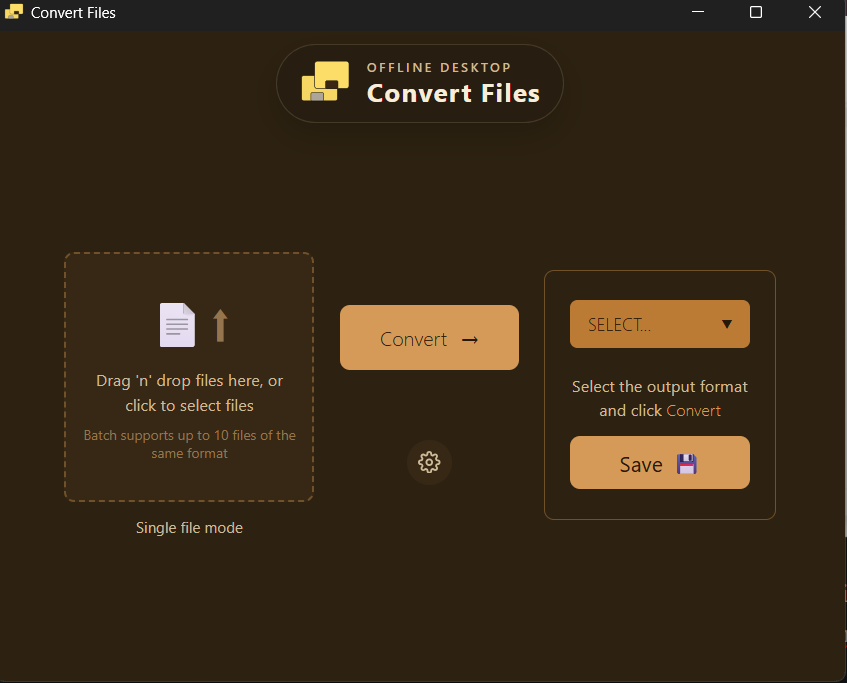
The process is pretty straightforward:
- Download the app
- Sign in using your paid email address.
- Install necessary tools (auto-run checks in the background)
- Click Launch
- Use forever
No need to type in a different command for different formats. Needn't check updates for new formats in different tools. Install once and use forever.
Ideally, the best option for professionals dealing with sensitive files on a daily basis.
Takeaway
At the end of the day, it comes down to what fits your convenience and daily usage with this use case for file conversion. Different people have different priorities, but safety is one of it, local options are always the go-to for your files.
